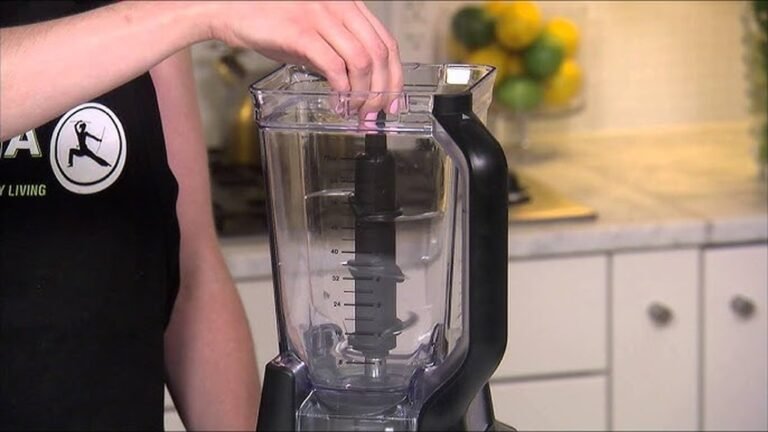
How To Reset Ninja Blender Auto-IQ: Quick and Easy Guide
If your Ninja Blender Auto-IQ is acting up, not responding, or showing error lights, you’re not alone. Many people experience issues where the blender won’t start, gets stuck on a program, or the buttons don’t work as expected. The good news is that most problems can be fixed by a simple reset. But resetting isn’t always as simple as pressing a button—different models and issues need different solutions. This guide will show you everything you need to know to reset your Ninja Blender Auto-IQ, avoid common mistakes, and keep your blender running smoothly.
Understanding how to reset your blender is a practical skill every Ninja owner should learn. You’ll save time, avoid unnecessary repairs, and extend your blender’s life. We’ll also cover key troubleshooting steps, what to do if the reset doesn’t work, and tips for preventing future issues.
Whether you’re a new user or a seasoned smoothie maker, you’ll find clear steps and answers here.
What Is Ninja Blender Auto-iq?
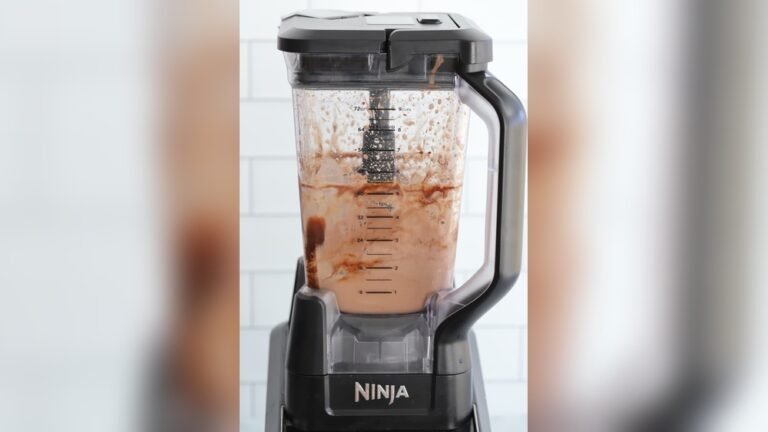
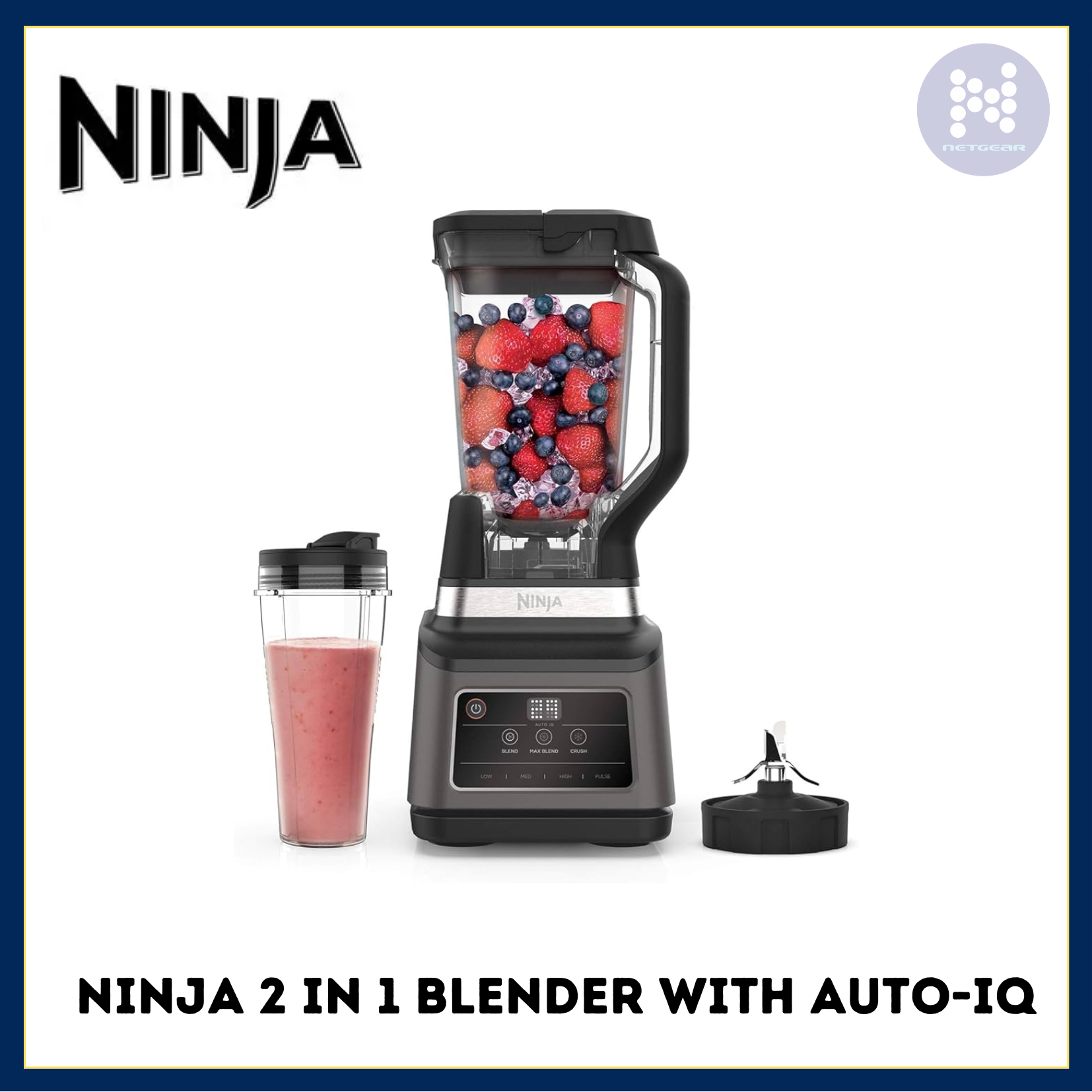
The Ninja Blender Auto-IQ is a line of smart blenders from Ninja that use unique programs to blend, crush, and process food with just one touch. These blenders come with built-in sensors and pre-set cycles for smoothies, ice crush, purees, and more. Auto-IQ technology helps make blending easy and consistent, even for beginners.
What makes Auto-IQ different from regular blenders is that it “thinks” for you. Instead of guessing how long to blend, you just press a program button. The blender uses a mix of timed blending, pulsing, and pausing to get the results you want.
This is great for busy mornings, but if the system detects a problem, it may stop working until you fix it—or reset it.
Why Might You Need To Reset Your Ninja Blender Auto-iq?
There are several reasons why you might need to reset your Ninja Blender Auto-IQ:
- Power surges or outages: Sudden loss of power can confuse the electronic controls, causing them to freeze or become unresponsive.
- Error codes or flashing lights: Some models show error codes or blink lights when there’s a problem with the lid, pitcher, or motor.
- Stuck programs: The Auto-IQ system can sometimes get “stuck” in a cycle and not respond to new commands.
- Unresponsive buttons: If none of the buttons work, a reset can often restore function.
- Overheating: The blender may shut down for safety if it gets too hot, and it won’t work again until you reset it.
- Software glitches: Like any smart device, occasional glitches can lock the controls or cause odd behavior.
Understanding the cause helps you choose the right reset method and avoid unnecessary frustration.
Common Ninja Blender Auto-iq Models And Their Reset Differences
Not all Ninja Auto-IQ blenders are the same. Some have touchscreens, others have physical buttons. Some models have removable blades, while others do not. Knowing your specific model helps you follow the correct reset steps.
Here’s a quick comparison of popular Auto-IQ models and their reset features:
| Model Name | Control Type | Reset Method | Special Features |
|---|---|---|---|
| Ninja BL480D | Button | Unplug & Wait | Single-Serve, Pulse |
| Ninja BL682 | Button | Unplug & Reattach Parts | Food Processor Bowl |
| Ninja CT650 | Touchscreen | Factory Reset Button | Heated Blending, Digital Display |
| Ninja BN801 | Button | Unplug & Reassemble | Auto-Spiralizer, Multiple Pitchers |
| Ninja HB152 | Button | Unplug & Cool Down | Heated Soup Program |
Key Insight: Some newer models have a small “reset” button near the power cord or under the base. Most older models require you to unplug the unit and wait.
Safety First: Preparing To Reset
Before you touch your blender, take a moment to stay safe:
- Unplug first: Always unplug the blender before cleaning, resetting, or moving parts.
- Check for hot surfaces: If you’ve just used the blender for hot soups, let it cool down.
- Dry hands: Wet hands and electricity don’t mix.
- Handle blades carefully: If you need to remove or reattach the pitcher, be careful of the sharp blades.
Non-obvious tip: If your blender has just overheated, wait at least 15–20 minutes before trying to reset. The thermal sensor inside needs time to cool down, or the reset won’t work.
Step-by-step: How To Reset Ninja Blender Auto-iq
Now, let’s get into the practical steps. The reset process is slightly different based on your model and the problem you’re facing.
General Reset Method (works For Most Models)
- Turn off and unplug: Switch off the blender and unplug it from the wall.
- Wait 2–3 minutes: This allows any leftover electrical charge to leave the system.
- Check and reassemble: Remove the pitcher and lid. Check for stuck food, misaligned parts, or safety locks. Reattach everything carefully.
- Plug back in: Reconnect the blender to power.
- Test with water: Add a cup of water and run a short program to see if the blender works.
If the blender works, you’re done. If not, try the steps for your specific issue below.
Resetting After Overheating
If the motor stops and you smell something hot, your blender may have overheated. Most Ninja blenders have an automatic shut-off for safety.
- Unplug and empty: Remove the pitcher and empty any food or liquid.
- Let it cool: Leave the blender unplugged for at least 20–30 minutes.
- Clean the base: Wipe away any spilled food or moisture.
- Plug in and test: After cooling, reassemble and try a short blend with water.
Non-obvious insight: Blending thick or sticky foods at high speed for too long is the most common cause of overheating. Always use the correct speed and program for the food type.
Resetting When Buttons Don’t Work
If none of the buttons respond, try this:
- Unplug for 5–10 minutes: This longer wait helps reset the internal memory.
- Press each button: While unplugged, press each button firmly once to help drain any leftover charge.
- Plug in and check: Reconnect to power and try the buttons again.
If the buttons still don’t work, the control panel may need repair.
Resetting Touchscreen Models
Some newer Ninja Auto-IQ blenders (like the CT650 series) have a factory reset button.
- Find the reset button: Look for a small “reset” hole near the power cord or under the base.
- Use a paperclip: With the blender unplugged, gently press the button for 5 seconds.
- Plug in and test: Restore power and see if the screen works normally.
Caution: Only use the reset button if your manual recommends it. Using it too often can erase saved settings.
Resetting Error Codes Or Flashing Lights
Some models show error codes (like “ERR” or “E01”) or blink all lights when there’s a problem.
- Read the manual: Check your user manual for what the code means.
- Fix the cause: Most codes relate to lid, pitcher, or safety lock problems. Make sure all parts are attached correctly.
- Unplug and reassemble: Remove, inspect, and reattach each part.
- Reset power: Unplug for 2–3 minutes, then try again.
If the error code returns, you may need service.
Quick Reference: Reset Steps By Problem
Here’s a handy table for common issues and the right reset method:
| Problem | Reset Method | Typical Wait Time | Extra Step |
|---|---|---|---|
| Blender won’t turn on | Unplug, check parts | 2–3 min | Test outlet with another device |
| Buttons unresponsive | Unplug, press buttons | 5–10 min | Check for stuck buttons |
| Flashing lights or errors | Unplug, reassemble | 2–3 min | Check lid and pitcher locks |
| Overheated motor | Unplug, cool down | 20–30 min | Clean motor base |
| Touchscreen not working | Factory reset button | Immediate | Check manual before use |
Advanced Troubleshooting: When A Reset Isn’t Enough
Sometimes, your Ninja Blender may still not work after a reset. Here are steps to dig deeper:
1. Check The Power Outlet
Use another device (like a lamp or phone charger) to confirm your outlet is working. GFCI outlets (those with a reset/test button) may need to be reset themselves.
2. Inspect Safety Interlocks
Ninja blenders use safety switches in the lid and base. If these aren’t fully engaged, the blender won’t run.
- Open and close the lid firmly.
- Make sure the pitcher “clicks” into place.
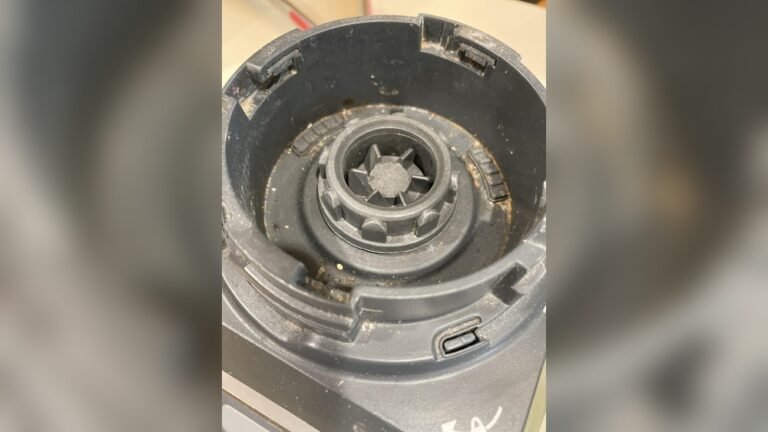
- Check for broken plastic tabs or debris blocking the lock.
3. Examine The Blades And Seals
If the blades are jammed or food is stuck under the seal, the motor may refuse to start as a safety measure.
- Remove and clean the blades carefully.
- Look for hidden food under the rubber gasket.
4. Test With Different Pitchers Or Cups
If you have more than one pitcher or cup, try them all. Sometimes a single cup or pitcher is the problem, not the base.
5. Look For Visible Damage
Burn marks, melted plastic, or exposed wires are signs you need professional repair or replacement.
Important: If you smell burning or see smoke, unplug the unit immediately and do not use it until inspected.
Credit: www.reddit.com
Preventing Future Problems With Your Ninja Blender Auto-iq
Resets are helpful, but prevention is even better. Here’s how to keep your blender working smoothly:
- Don’t overfill: Always stay below the “Max Fill” line, especially with hot or thick foods.
- Cut food smaller: Large chunks can jam the blades and overwork the motor.
- Use correct programs: Each Auto-IQ program is designed for a certain job. Using “Smoothie” for ice crushing can stress the motor.
- Clean after each use: Food left in the base or under the blades can cause buildup and errors.
- Let the motor rest: Give your blender a few minutes between heavy blends.
- Check seals and gaskets: Replace any worn or cracked seals to prevent leaks.
Expert tip: Once a month, run your blender with a mixture of warm water and a few drops of dish soap. This helps clean hard-to-reach spots and keeps sensors working.
When To Call For Professional Help
Most Ninja Blender Auto-IQ problems can be fixed at home. But some issues need professional service:
- Persistent error codes: If errors return after multiple resets, the control board may be failing.
- Motor won’t spin: If the motor is silent, even with good power, internal parts may be damaged.
- Burnt smell or smoke: This is a safety risk. Don’t keep resetting—get it checked.
- Physical damage: Cracks, broken buttons, or leaking bases need proper repair.
Ninja blenders often come with a 1-year warranty (sometimes longer if you registered online). Check your warranty before paying for repairs.
For up-to-date manuals, parts, and support, visit the official Ninja Kitchen Support page.

Credit: www.youtube.com
Comparing Ninja Auto-iq Reset Methods To Other Blender Brands
Understanding how Ninja’s reset process compares to other brands can help you appreciate its safety features—and avoid mistakes if you switch brands.
| Brand | Typical Reset Method | Special Notes |
|---|---|---|
| Ninja Auto-IQ | Unplug & wait; some have reset button | Safety locks and overheating protection |
| Vitamix | Reset switch under base | No Auto-IQ features; manual programs |
| NutriBullet | Unplug only | No error codes; simple controls |
| Blendtec | Touchscreen reset in menu | Digital display, more advanced software |
Key takeaway: Ninja’s focus on safety locks and error codes means you need to check assembly and cooldown time, not just power.
Real-world Examples: Common Reset Scenarios
Let’s look at two real-life examples:
Example 1: Blender Stops Mid-blend
Maria is making hummus in her Ninja BL682. Suddenly, the blender stops and the lights blink. She unplugs, waits 2 minutes, but it still won’t work. She remembers to check the lid—turns out, it wasn’t fully locked. She clicks it closed, resets the power, and the blender works perfectly.
Lesson: Assembly mistakes are a top cause of “locked up” blenders.
Example 2: Touchscreen Frozen After Power Surge
James has a Ninja CT650 with a touchscreen. After a lightning storm, the screen won’t respond. He finds the small reset button under the base, presses it with a paperclip, and the blender resets. Everything returns to normal.
Lesson: Factory reset buttons are very useful for digital models but should be used carefully.
The Most Common Mistakes When Resetting A Ninja Blender Auto-iq
Many users make small errors when trying to reset. Here’s what to avoid:
- Resetting too soon: Not waiting long enough after unplugging. Give it at least 2–3 minutes, or 20 minutes after overheating.
- Ignoring safety locks: Not checking lid, pitcher, and safety tabs.
- Missing hidden error codes: Some models flash codes briefly—read the manual to understand them.
- Forcing parts: Never force the pitcher or lid into place. If it won’t fit, something is wrong.
- Using wrong programs: Don’t use ice crush for hot soup, or smoothie mode for dough.
Pro tip: If the blender doesn’t work after a reset, try resetting the outlet (especially if it’s a GFCI kitchen plug).
How To Know If Your Blender Needs A Reset
You may need to reset your Ninja Auto-IQ if you notice:
- No power: The blender doesn’t turn on, even with a working outlet.
- Unresponsive controls: Buttons or touchscreen don’t react.
- Error lights or codes: Lights blink or codes appear.
- Sudden shut-off: The blender stops mid-cycle, especially with hot or thick mixes.
- Repeating problems: Issues return after fixing once.
If your blender works normally after unplugging and plugging back in, a reset solved the problem. If issues return often, seek support.
Credit: netgear.gi
Keeping Your Ninja Blender Auto-iq In Top Condition
Long-term care is just as important as quick fixes. Here’s what experienced users do:
- Register your blender: This makes warranty claims easier.
- Read the manual: Each model is a little different.
- Store safely: Keep your blender in a dry place, away from direct heat.
- Replace worn parts: Gaskets, blades, and pitchers can wear out after years of use.
- Check for recalls: Visit the Ninja website occasionally to see if your model has any safety updates.
Insider advice: Write down your blender’s model and serial number (usually found under the base) and keep it with your warranty card.
Frequently Asked Questions
How Do I Know If My Ninja Blender Auto-iq Is Overheated?
If your blender suddenly stops during use, feels hot to the touch, or smells “burned,” it likely overheated. Most models will not restart until they cool down, which may take 20–30 minutes. Try unplugging, letting it rest, and then resetting.
What Does It Mean If All The Lights Are Flashing On My Ninja Auto-iq?
Flashing lights usually mean a safety or assembly issue—often a lid or pitcher that isn’t locked in place. Double-check all attachments, unplug for a few minutes, then reassemble and try again. If lights still flash, check your manual for error code meanings.
Can I Reset My Ninja Auto-iq Blender If The Touchscreen Is Frozen?
Yes. For touchscreen models, look for a small reset button near the power cord or under the base. Use a paperclip to press it gently for five seconds, then plug the blender in and check the screen. Always check your manual for model-specific instructions.
Will Resetting My Ninja Blender Auto-iq Erase Any Saved Settings?
Most Auto-IQ models do not allow user-programmed settings, so resetting simply restores normal function. For digital touchscreen models, a factory reset may erase custom settings or saved programs. Consult your manual before using the reset button if you have saved preferences.
Where Can I Get Official Support Or Replacement Parts For My Ninja Blender Auto-iq?
You can find manuals, troubleshooting guides, and order replacement parts directly from the Ninja Kitchen Support website. Always use official parts for best performance and safety.
A well-cared-for Ninja Blender Auto-IQ can give you years of reliable blending. If you follow these reset and troubleshooting steps, you’ll spend less time fixing and more time enjoying smoothies, soups, and all your favorite recipes. Remember, a little prevention and quick action go a long way in kitchen appliance care.