How To Use Ninja Blender Auto-IQ: A Quick Start Guide
The Ninja Blender Auto-iQ has changed how people blend at home. Instead of guessing how long to blend or pulse, this smart blender uses pre-programmed settings that make smoothies, sauces, and more with just one button. If you want to stop wasting time and get perfect results every time, learning how to use Ninja Blender Auto-iQ is a great investment in your kitchen skills.
But even with its smart technology, many owners don’t use all the features. Some just use the manual controls, missing out on what makes Auto-iQ special. This guide will walk you through everything: from setting up, understanding each button, to cleaning and troubleshooting. You’ll also learn how to get the most from your blender, avoid common mistakes, and discover tips that even long-time users often miss.
By the end, you’ll feel confident using your Ninja Blender Auto-iQ for everything from morning shakes to party dips. Let’s unlock its full potential.
What Makes Ninja Blender Auto-iq Unique?
Ninja’s Auto-iQ technology stands out in a crowded market. Most blenders just offer speed controls and a pulse button. Auto-iQ blenders use intelligent programs designed for common kitchen tasks. They have sensors that track the load and adjust blending patterns. This means the blender can start, stop, pulse, and run at different speeds for you.
You’ll see buttons labeled with words like “Smoothie” or “Extract. ” When you press one, the blender runs a special pattern for that recipe. Each setting is tested to get the best texture and consistency, so you don’t have to guess when to stop.
How Auto-iq Compares To Traditional Blenders
Here’s a quick comparison:
| Feature | Ninja Blender Auto-iQ | Traditional Blender |
|---|---|---|
| Pre-set Programs | Yes (Smoothie, Extract, etc.) | No |
| Manual Controls | Yes | Yes |
| Pulse Function | Yes (with smart patterns) | Yes (manual) |
| Load Sensing | Yes | No |
| Consistency | High (auto-adjusts) | Varies (user controlled) |
The result? Less effort, more reliable outcomes, and less risk of over-blending or under-blending.
Setting Up Your Ninja Blender Auto-iq
Before you start making your first smoothie, it’s important to set up your blender correctly. Proper setup ensures safety and best performance.
1. Unpack Carefully
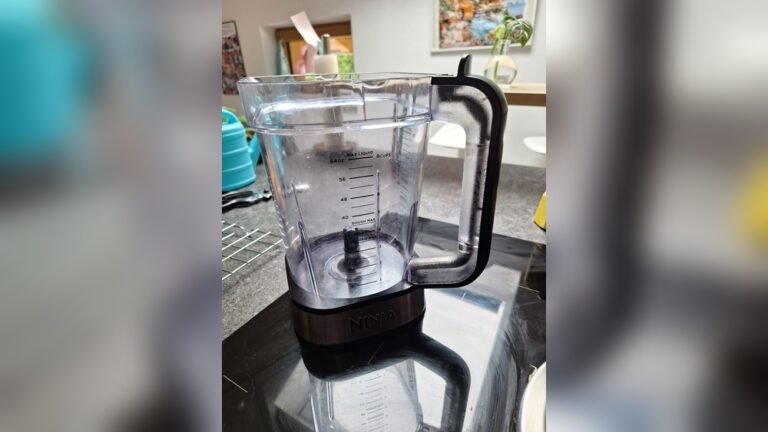
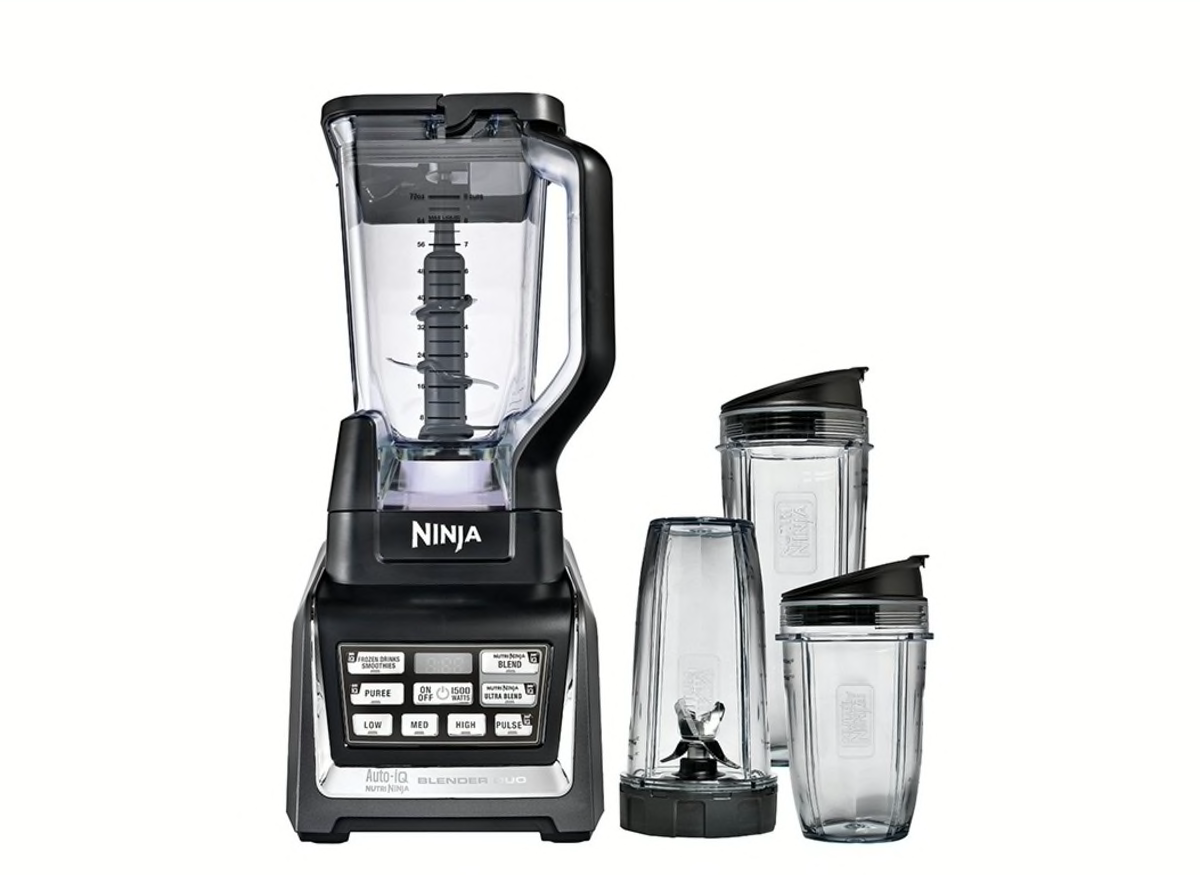
Remove all packaging and check for parts: the base, blending cups or pitcher, blades, and lids.
2. Wash Parts Before First Use
Wash all removable parts with warm soapy water, except the motor base. Rinse and dry thoroughly.
- Assemble the Blender
- Place the motor base on a flat, dry surface.
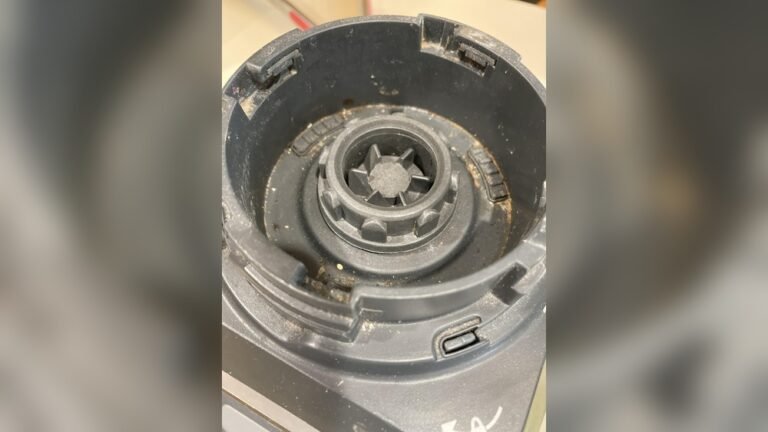
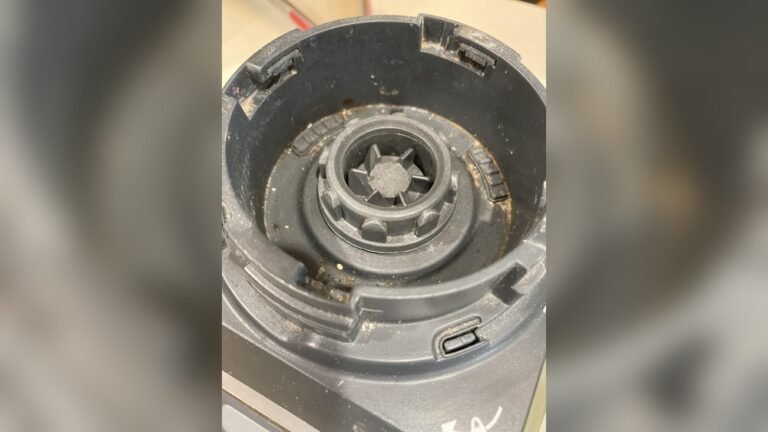
- Attach the blade assembly to your chosen container (single-serve cup or full-size pitcher).
- Add your ingredients—solids first, then liquids on top.
- Secure the lid tightly. For pitchers, ensure the handle clicks into place. For cups, twist the blade assembly until snug.
- Power Up
Plug in the base. The control panel lights should turn on, showing it’s ready.
5. Check For Safety Features
Ninja Auto-iQ blenders won’t run unless everything is locked. If you see blinking lights or an error message, check the assembly and try again.
Placement Tips
- Never place the blender near water or heat sources.
- Leave enough space above the lid for steam to escape if blending hot items.
- Use the blender on a stable, level counter to prevent movement.
Credit: www.consumerreports.org
Understanding The Control Panel
The control panel is what makes Ninja Auto-iQ special. Knowing each button helps you get the most from your blender.
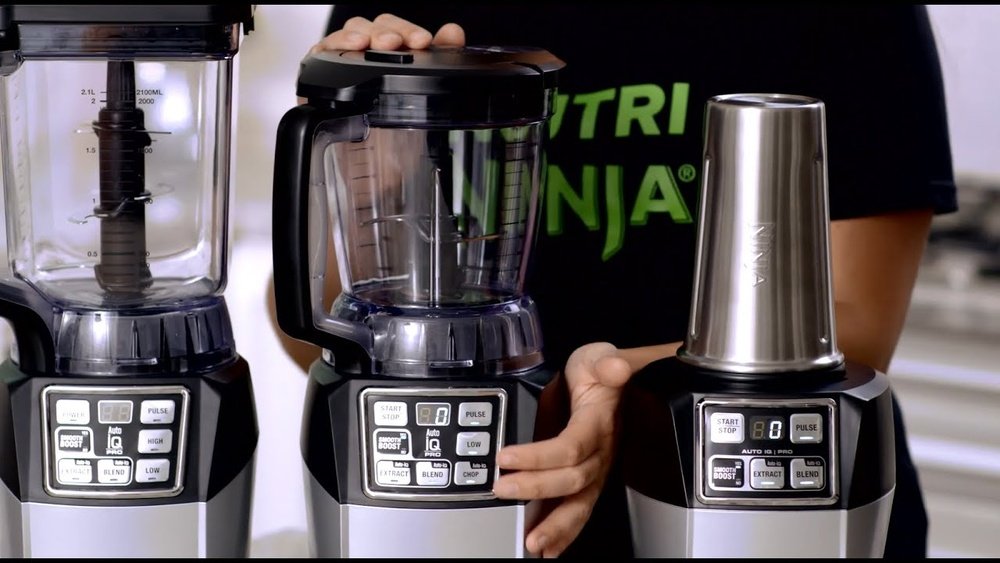
Common Buttons And What They Do
- Power: Turns the blender on or off.
- Auto-iQ Programs: These include Smoothie, Extract, Ice Crush, Puree, and others. Each runs a smart cycle.
- Pulse: Gives short, strong bursts—good for chopping or mixing.
- Low/Med/High: Manual speed settings for custom blending.
- Start/Stop: Begins or ends a cycle.
Not all models have all buttons. Check your manual for the exact layout.
Example: What Happens When You Press “smoothie”
The “Smoothie” button is a favorite. When you press it, the blender usually:
- Runs fast for a few seconds (breaking up big pieces)
- Pulses to move ingredients down
- Runs again for a smooth finish
- Stops automatically
This pattern is designed to crush ice, blend greens, and mix liquids evenly—no need to guess the time.
Control Panel Layout Example
Here’s a typical layout for a Ninja Auto-iQ blender:
| Button | Function |
|---|---|
| Smoothie | Auto blend for smoothies |
| Extract | Auto blend for nutrient extraction |
| Ice Crush | Auto blend for ice and frozen drinks |
| Puree | Auto blend for soups and sauces |
| Pulse | Manual, short bursts |
| Low/Med/High | Manual speed selection |
| Power | On/Off |
How To Use Each Auto-iq Program
Each Auto-iQ program is designed for a certain type of recipe or ingredient. Here’s how to use them correctly.
1. Smoothie
- Best for: Fruit, leafy greens, yogurt, protein shakes, and ice.
- How to use: Fill the cup or pitcher with your ingredients. Press “Smoothie.” The blender runs a program that crushes, pulses, and blends. When it stops, your drink is ready.
- Tip: Add liquids last, on top. This helps the blades pull everything down.
2. Extract
- Best for: Harder fruits, seeds, nuts, and vegetables.
- How to use: Great for making “green” drinks and extracting nutrients. Fill with tough items (like carrots, kale), then add liquid. Press “Extract.”
- Tip: Let frozen items sit for 2-3 minutes before blending for a creamier texture.
3. Ice Crush
- Best for: Ice, frozen fruit, making slushies or cocktails.
- How to use: Add ice or frozen ingredients. Press “Ice Crush.” The blender uses high speed and pulsing to break down hard items.
- Tip: Don’t overfill—leave space for ice to move.
4. Puree
- Best for: Soups, dips, baby food, sauces.
- How to use: Add cooked or soft ingredients. Press “Puree.” The blender runs a cycle for a silky finish.
- Tip: For hot soups, let them cool slightly before blending to avoid pressure build-up.
5. Pulse
- Best for: Chopping veggies, making salsa, or mixing batters.
- How to use: Press and hold “Pulse” for short bursts. Release to stop.
- Tip: Use pulse instead of running the blender non-stop when you want chunky results.
Manual Speeds (low, Medium, High)
If you want more control, use these buttons. “Low” for gentle mixing, “Medium” for thicker blends, and “High” for tough jobs.
Which Program Should You Use?
Choosing the right program ensures better results. Here’s a quick guide:
| Recipe Type | Best Program |
|---|---|
| Green Smoothie | Extract |
| Fruit Smoothie | Smoothie |
| Frozen Drinks | Ice Crush |
| Soup | Puree |
| Salsa | Pulse |
Step-by-step Guide: Making A Smoothie
Let’s go through a real example using the Auto-iQ Smoothie function.
- Gather Ingredients
- 1 cup fresh spinach
- 1 banana, peeled
- 1 cup frozen berries
- 1 cup almond milk (or any milk)
- 1 tablespoon chia seeds (optional)
- Add to Blender
- Place spinach, banana, and frozen berries in the cup or pitcher.
- Pour almond milk over the top.
- Add chia seeds last.
- Attach Blade and Lid
- For single-serve cups, screw on the blade lid tightly.
- For pitchers, secure the lid until it clicks.
- Place on Base
- Align and lock the container onto the motor base.
- Power On
- Press the Power button.
- Select “Smoothie”
- Press the Smoothie Auto-iQ program.
- Wait for the cycle to finish (usually 45-60 seconds).
- Remove and Serve
- Take off the container and remove the lid.
- Pour into a glass or drink from the cup.
- Clean Up
- Rinse the blades and container right away for easy cleaning.
Common Mistakes When Making Smoothies
- Overfilling the cup: This can cause leaks or uneven blending.
- Not adding enough liquid: The blades need liquid to pull ingredients down.
- Using the wrong program: “Extract” is better for hard veggies; “Smoothie” for soft fruits.
Tips For The Best Results
Even with smart programs, a few tricks can make your results better:
- Layer Ingredients: Always put softer items at the bottom and harder ones on top. This helps the blades move everything down.
- Let Frozen Foods Thaw Slightly: Waiting 2-3 minutes before blending makes a smoother texture and less stress on the motor.
- Don’t Overload: Stay under the max fill line to avoid spills and ensure even blending.
- Use Pulse for Chunky Recipes: For salsa or chopped salads, pulse instead of running a full cycle.
- Pause and Shake: If ingredients get stuck, turn off the blender, shake the cup, then resume.
- Clean Immediately: Rinse containers and blades right after use to prevent sticking and odors.
Two Insights Beginners Miss
- Auto-iQ Programs Are Not Just Timers: Each program uses a mix of speed and pulsing. If you stop the cycle early, you miss the best texture.
- Pitcher vs. Cup Results Differ: The same program gives different results in a large pitcher compared to a single cup. For thick recipes, single-serve cups often blend smoother.
Cleaning And Maintenance
Proper cleaning keeps your Ninja Blender Auto-iQ working well and your food safe.
After Every Use
- Unplug the base.
- Wash removable parts (cup, pitcher, lid, blades) with warm, soapy water.
- Rinse and dry thoroughly.
- Wipe the base with a damp cloth—never submerge the motor.
Deep Cleaning
For stubborn stains or odors:
- Fill the pitcher halfway with warm water and a drop of dish soap.
- Run the “Pulse” function for 20-30 seconds.
- Rinse, then dry.
Dishwasher Use
Many Ninja parts are top-rack dishwasher safe, but always check your manual. Blades can dull over time in the dishwasher, so hand washing is best for longevity.
Maintenance Tips
- Check seals and gaskets for wear—replace if cracked.
- Sharpen or replace dull blades.
- Store with lids off to prevent smells.
Troubleshooting Common Problems
Even the smartest blenders can have issues. Here’s how to fix the most common problems:
Blender Won’t Start
- Check that all parts are locked in place.
- Make sure the lid and container are aligned.
- Look for error lights or messages on the display.
Blinking Lights
- Usually means something isn’t assembled correctly.
- Remove and reattach all parts, making sure everything clicks.
Poor Blending Or Chunky Results
- Add more liquid.
- Use the correct program.
- Don’t overfill; ingredients need space to move.
Leaks
- Check the gasket under the blade assembly.
- Do not fill past the max line.
- Tighten the blade base securely.
Overheating
- If the motor stops, let it cool for 15-20 minutes.
- Blend in shorter cycles when making large batches.
If you keep having issues, contact Ninja customer support or visit their official site for help.

Credit: thedaringkitchen.com
Using Your Ninja Blender Auto-iq For Different Recipes
The Auto-iQ isn’t just for smoothies. Here are more ways to use it:
Nut Butters
- Use “Extract” or “High.”
- Add roasted nuts and a little oil.
- Blend in short bursts, scraping sides as needed.
Dips And Sauces
- For hummus, salsa, or pesto, use “Puree” or “Pulse.”
- Add solid ingredients first, then oil or liquid.
Soups
- Blend cooked vegetables with broth using “Puree.”
- For hot soup, only fill halfway and vent the lid.
Frozen Treats
- Use “Ice Crush” for ice cream or frozen yogurt.
- Add frozen fruit and a splash of milk; blend until thick.
Batters And Dough
- Use “Low” or “Pulse.”
- Mix pancake or waffle batter for fluffy results.
Safety Tips And Best Practices
Ninja blenders are powerful. Follow these rules to stay safe:
- Never operate without the lid.
- Don’t touch blades—they are very sharp.
- Unplug before cleaning or removing blades.
- Don’t blend hot liquids unless the manual says it’s safe.
- Keep hands and utensils out of the pitcher during use.
What If The Blender Stops Mid-cycle?
- Check for overload or overheating.
- Remove some ingredients if overfilled.
- Wait for the motor to cool, then restart.
When To Use Manual Controls
Sometimes, manual control is best:
- When you want chunky salsa or chopped salad.
- For mixing in delicate ingredients (like berries) at the end.
- When making small batches or thick dips.
Start with “Low” and move up as needed. Pulse for more control.
Comparing Ninja Auto-iq With Other Smart Blenders
Is Ninja Auto-iQ the only smart blender? No. Brands like Vitamix and Blendtec also offer pre-set programs and smart features. Here’s how Ninja compares:
| Feature | Ninja Auto-iQ | Vitamix (with programs) | Blendtec |
|---|---|---|---|
| Price Range | $100-$200 | $350-$650 | $300-$600 |
| Number of Programs | 4-7 | 3-5 | 6-8 |
| Manual Control | Yes | Yes | Yes |
| Dishwasher Safe | Yes (most parts) | Some models | Yes |
| Warranty | 1 year | 7-10 years | 8 years |
Ninja Auto-iQ offers great value and smart features for the price, making it a popular choice for home kitchens.

Credit: www.youtube.com
How To Get The Most From Your Blender
To truly master your Ninja Blender Auto-iQ, try these practical strategies:
- Experiment with Auto-iQ programs on different recipes; you’ll discover which works best for each task.
- Use the blender for meal prep—chop veggies, make dressings, or whip up quick snacks.
- Try making nut milks, energy balls, or doughs to expand your skills.
- Clean as you go; it saves time and prevents smells.
Two More Insights Beginners Miss
- Use Rest Periods for Large Batches: For big jobs, blend in short bursts and pause to prevent overheating.
- Store Blades Separately: Keeping blades out of the container reduces wear on gaskets and keeps your blender odor-free.
Where To Find More Resources
For more recipes, troubleshooting, and tips, visit the official Ninja Kitchen website or check their YouTube channel. You’ll find videos, guides, and community advice.
If you want to compare with other smart blenders, visit Consumer Reports for unbiased reviews.
Frequently Asked Questions
How Do I Know Which Auto-iq Program To Use?
Check your recipe and ingredient type. Use “Smoothie” for soft fruits and dairy, “Extract” for tough veggies and seeds, “Ice Crush” for frozen items, and “Puree” for soups or sauces. If in doubt, start with the closest match, and adjust next time based on results.
Can I Blend Hot Liquids In My Ninja Blender Auto-iq?
It depends on the model. Many Ninja Auto-iQ blenders are designed for cold or room temperature blends. If you need to blend hot soup, let it cool first, only fill halfway, and vent the lid. Always read your manual for safety guidelines.
Why Does My Blender Stop Or Show Blinking Lights?
Blinking lights usually mean something isn’t assembled correctly. Check that the lid is locked, the pitcher is seated, and the blade is tight. If it stops mid-cycle, it may be overheating or overloaded. Wait, reduce the contents, and restart.
Are Ninja Auto-iq Blender Parts Dishwasher Safe?
Most removable parts are top-rack dishwasher safe, including the cups and lids. However, hand-washing blades is best to keep them sharp and avoid dulling. Always check your model’s instructions to be sure.
How Do I Clean Stuck-on Residue Or Odors From My Blender?
Fill the pitcher halfway with warm water and a drop of dish soap. Run the “Pulse” function for 20-30 seconds, then rinse. For tough odors, blend a mix of water and lemon juice. Dry all parts before storing.
Ninja Blender Auto-iQ makes blending easy, smart, and versatile. With the right setup, program choices, and a few expert tips, you’ll get great results every time. Enjoy exploring new recipes and making your kitchen routine faster and more fun.